Setup Guide for RevEdge
RevEdge is the AI revenue partner for executive-level insights. RevEdge integrates with HubSpot to connect signals across pipeline, customers, deal execution, and go-to-market activity, which lets users:
- Get a proactive, business-wide view of revenue risk — surfacing issues buried in HubSpot data before they turn into missed numbers, instead of just reporting on what already happened.
- Receive executive-level briefs that connect HubSpot insights to clear revenue impact, each paired with prioritized recommendations and one-click actions.
- Act efficiently from a mobile-first app that highlights what needs attention today, with direct links back to the underlying HubSpot records to dig deeper as needed.
Install the App
To connect RevEdge to HubSpot, sign up for a RevEdge account and complete the guided connection flow:
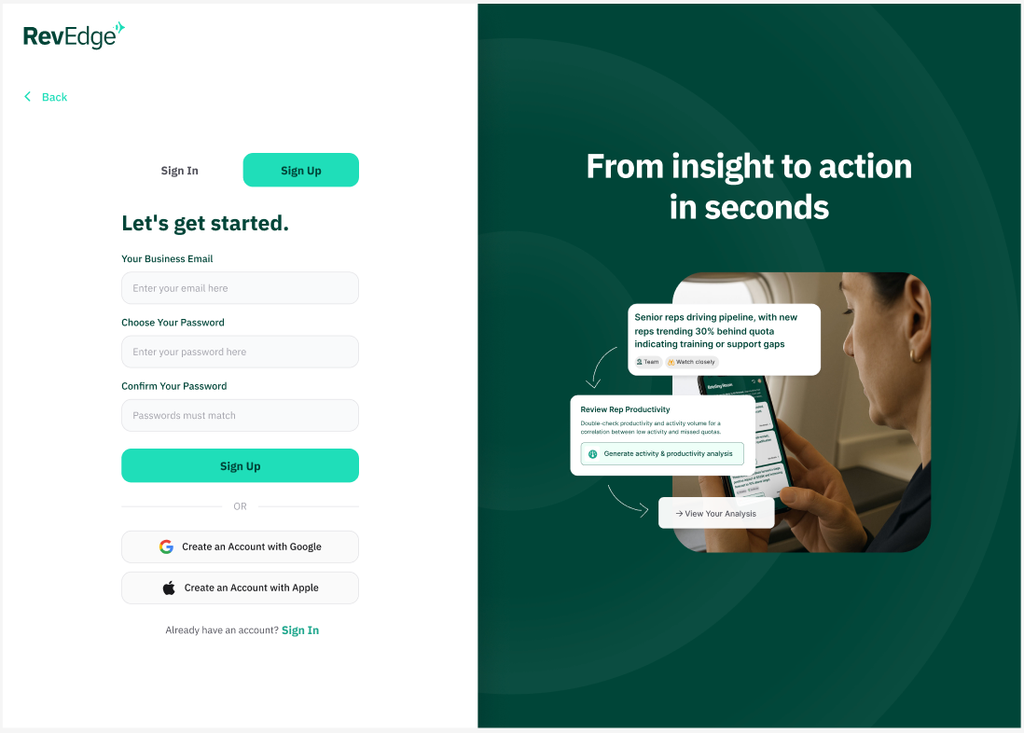
- Go to revedge.ai and click Sign Up.
- Fill in your business email and choose a password, then click Sign Up.
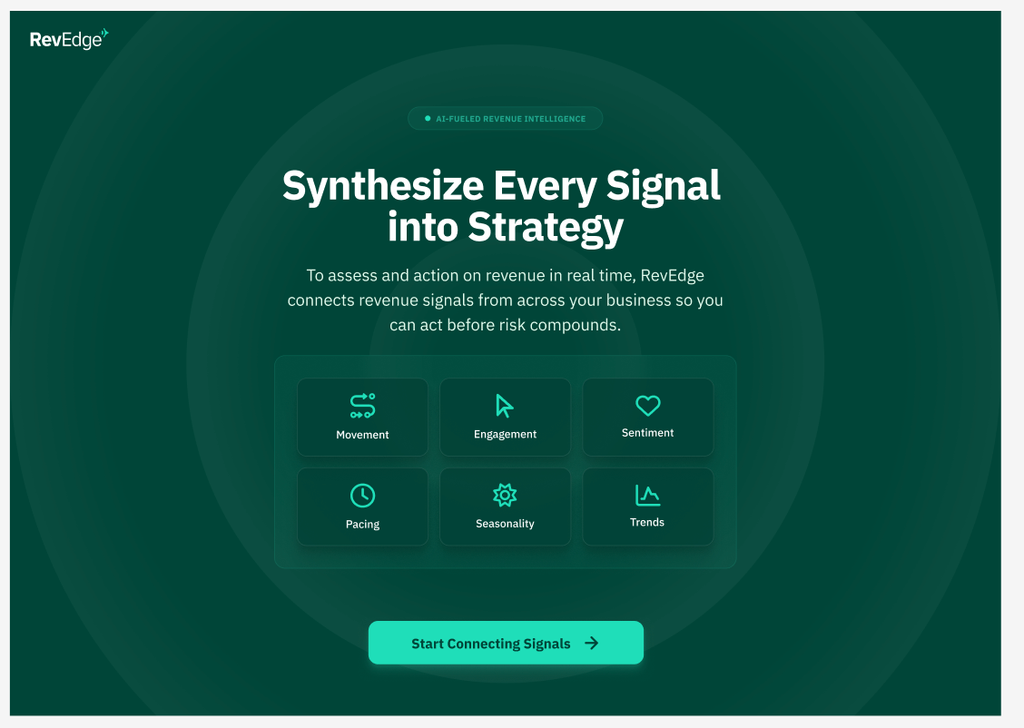
- On the next page, click Start Connecting Signals.
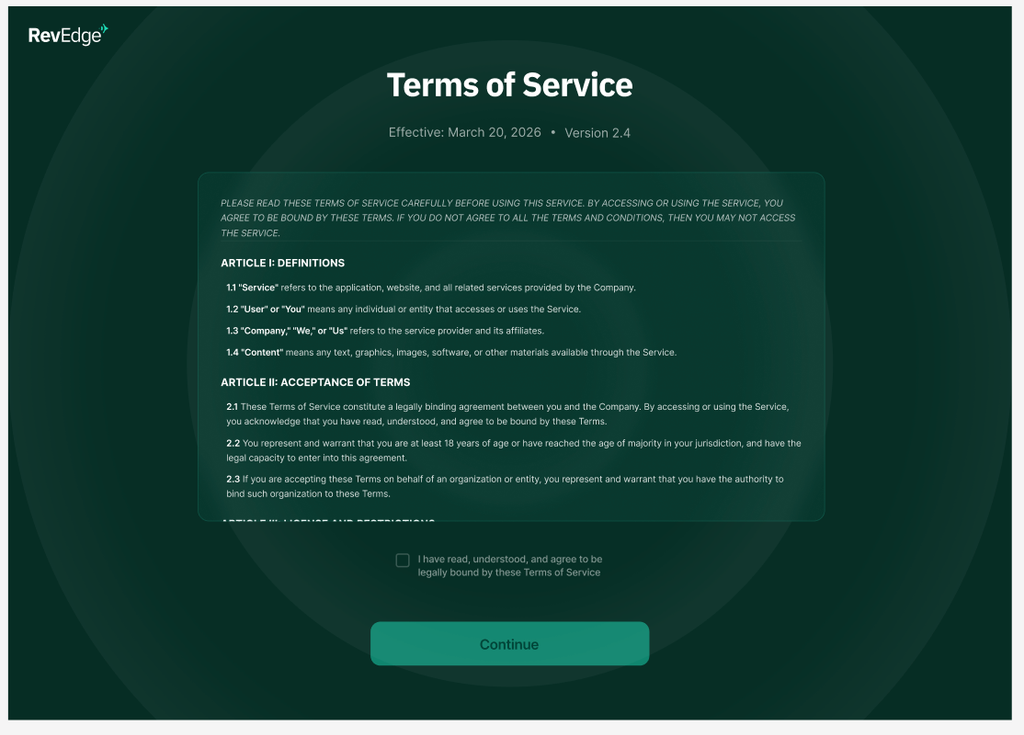
- Agree to the RevEdge Terms of Service.
- Start your 30 day Free Trial – credit card is required, we send a reminder 7 days before any charges hit your card. Cancel at anytime with one click.
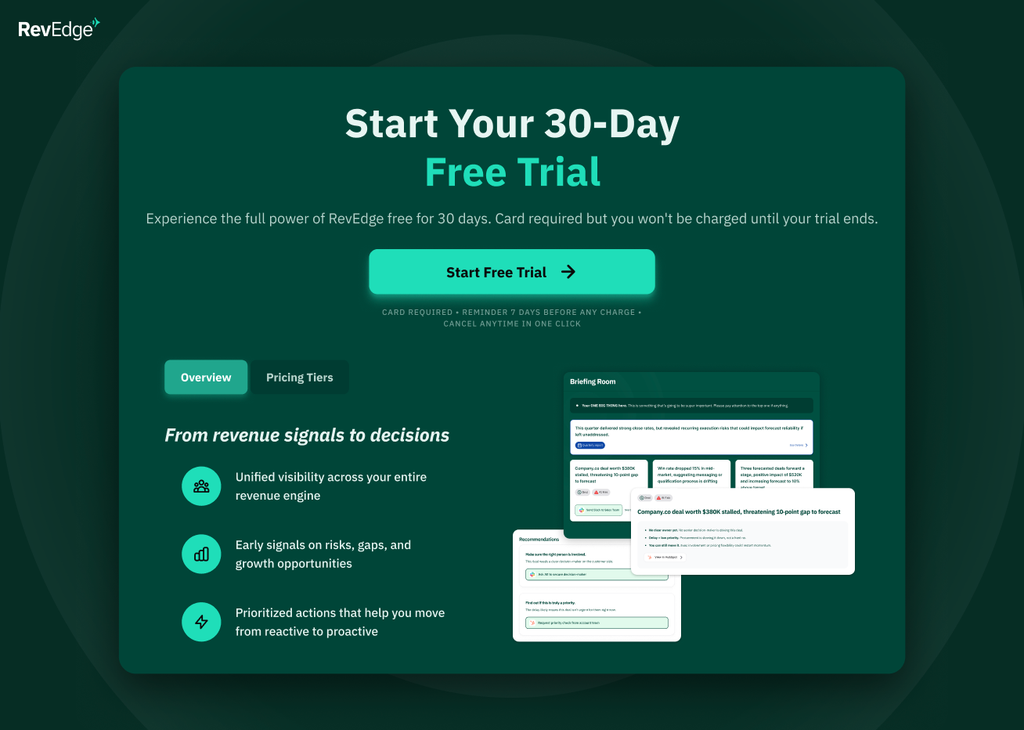
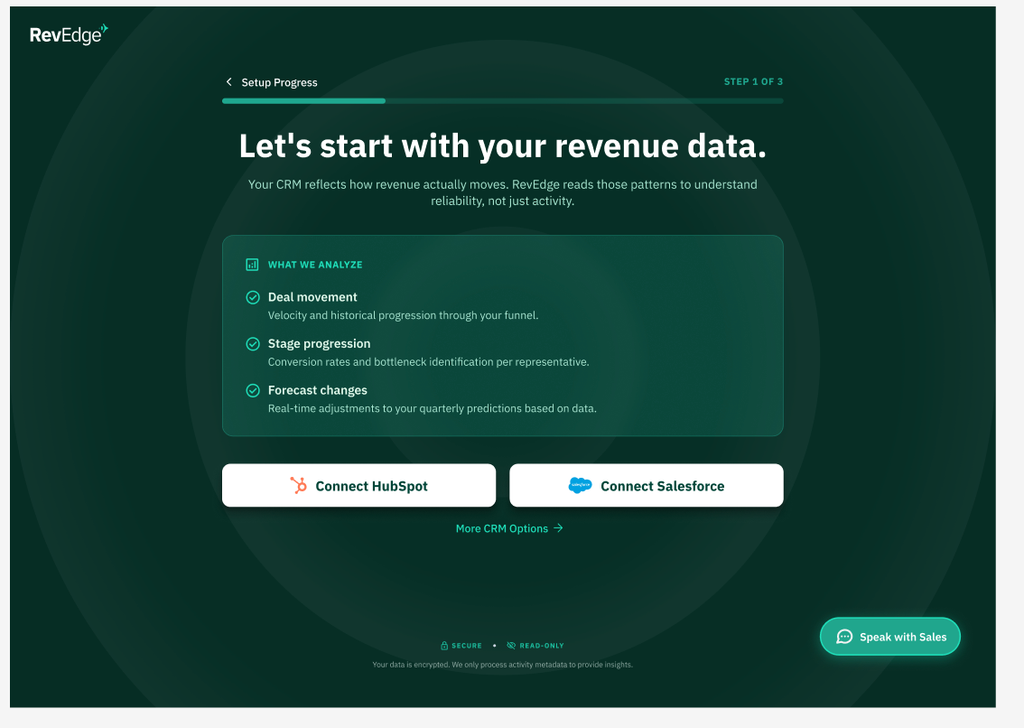
- Under Connect Your CRM, choose HubSpot.
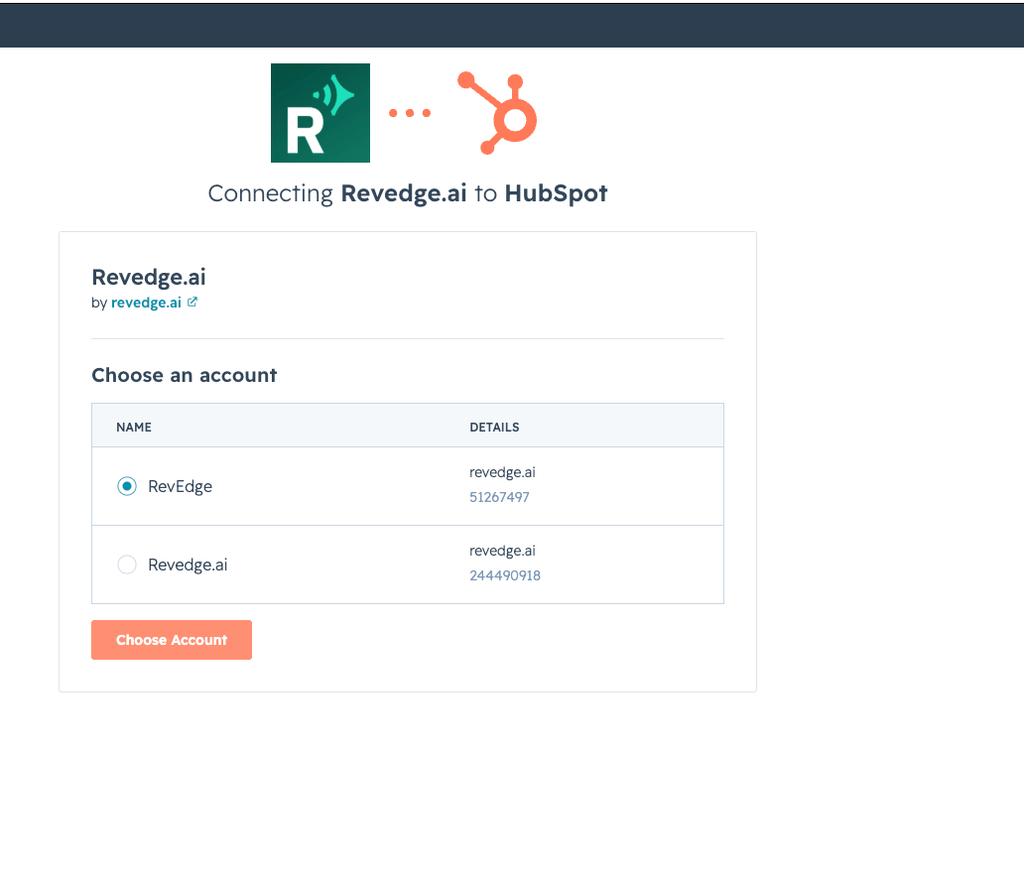
- Choose the HubSpot account you want to connect to RevEdge. Click Choose Account
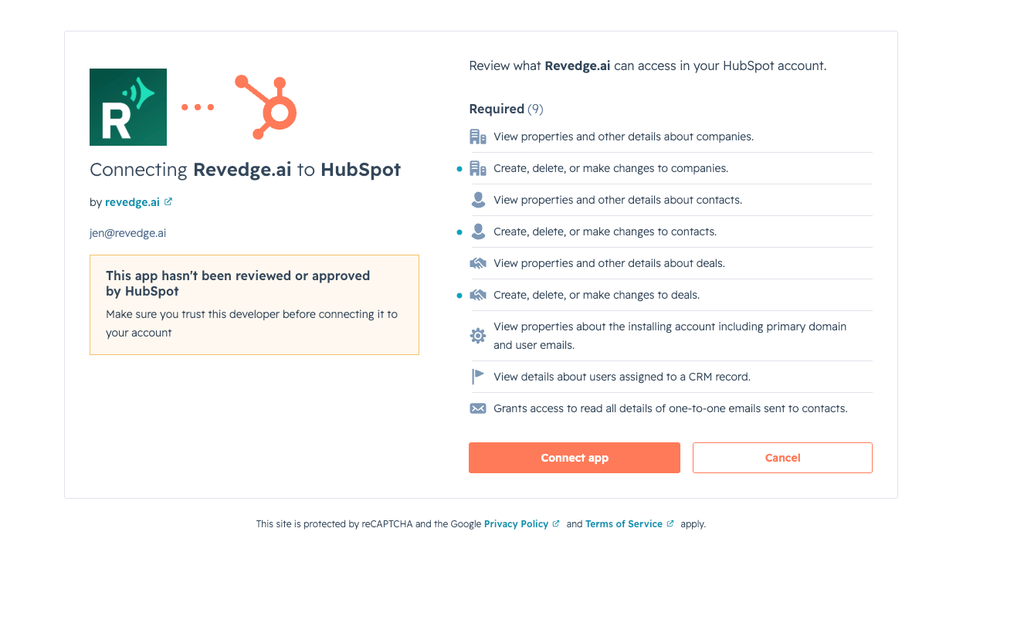
- Review the requested scopes on this screen. RevEdge requests access to read and write contacts, companies, and deals, along with related engagement data needed to power revenue insights.
- Click Connect App.
- You’ll be redirected back to RevEdge, and RevEdge will begin pulling in your deal activity from HubSpot.
Note: Depending on the size of your HubSpot portal, the initial historical sync can take several minutes.
Configure the App
Once your HubSpot account is connected, finish setting up RevEdge so your notifications and insights are relevant to your business:
- From there, choose to connect either Gmail or Outlook so RevEdge can incorporate relevant email activity.
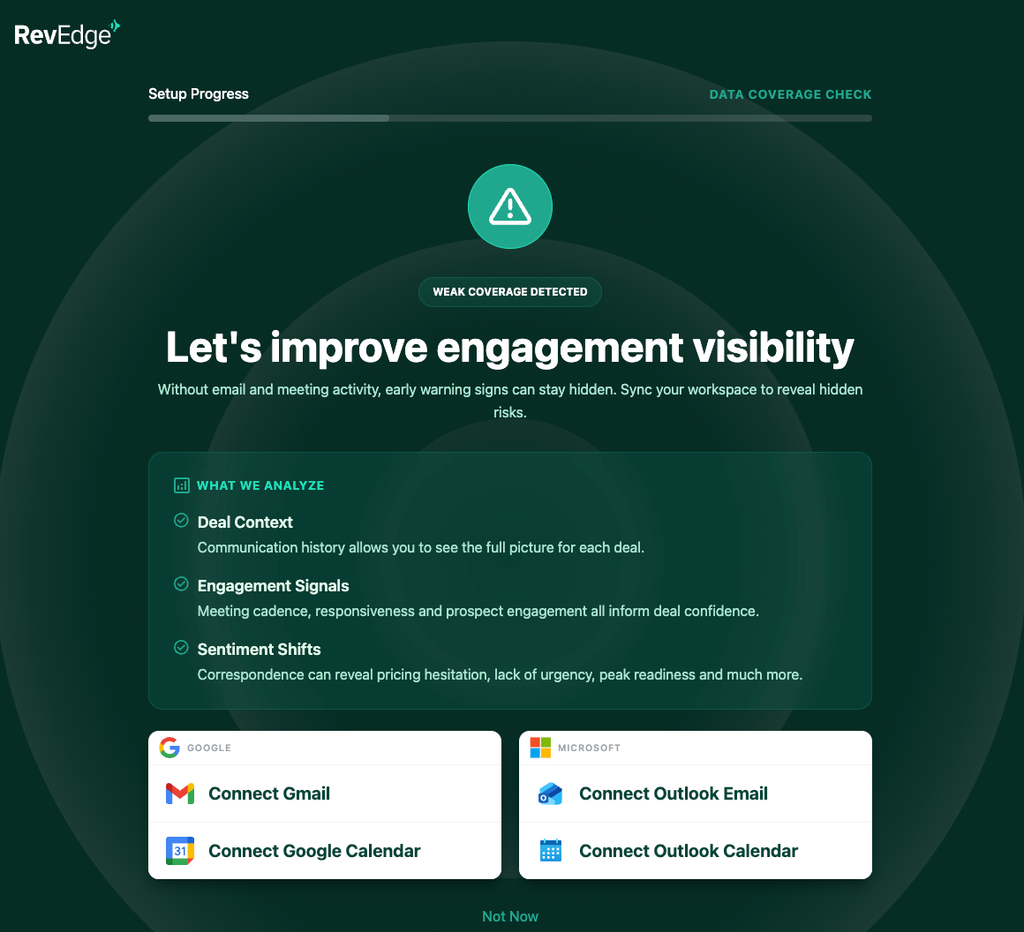
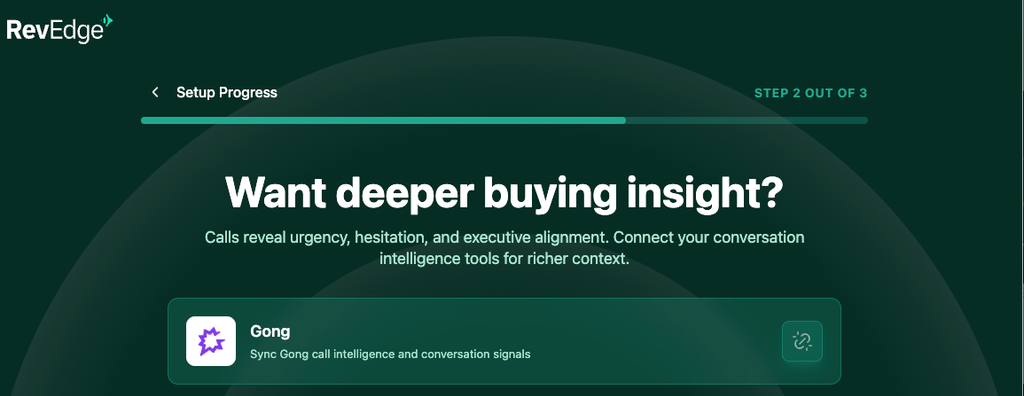
- Optionally, connect a conversation intelligence tool such as Gong.
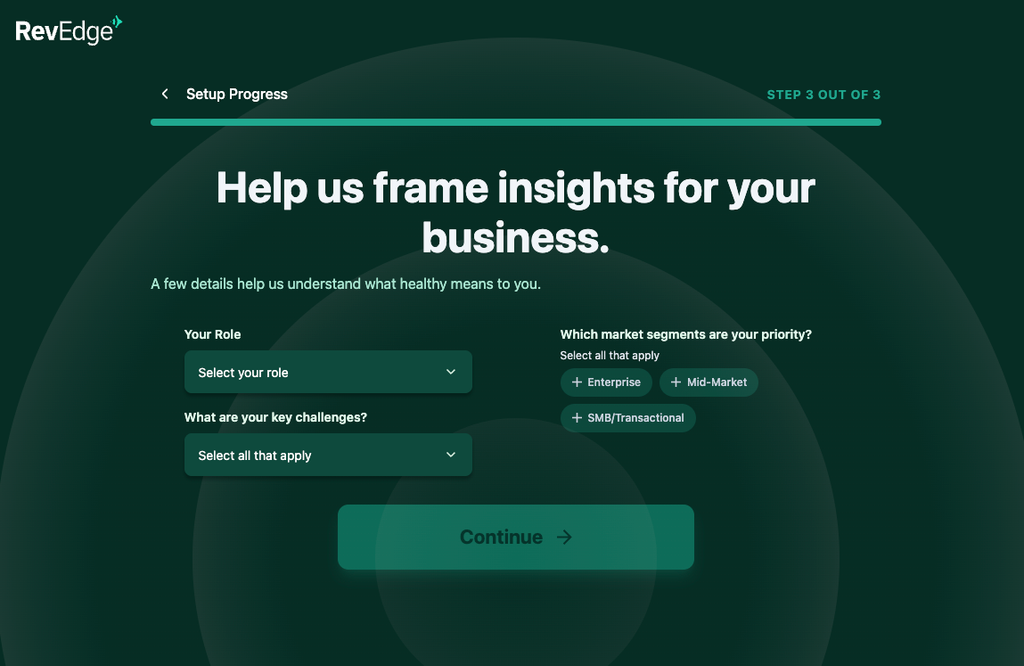
- Tell RevEdge more about your business — team structure, deal stages, and priorities — so notifications are tailored and relevant.
- Review your HubSpot field mapping if prompted, so RevEdge deal and company fields align with your HubSpot properties.
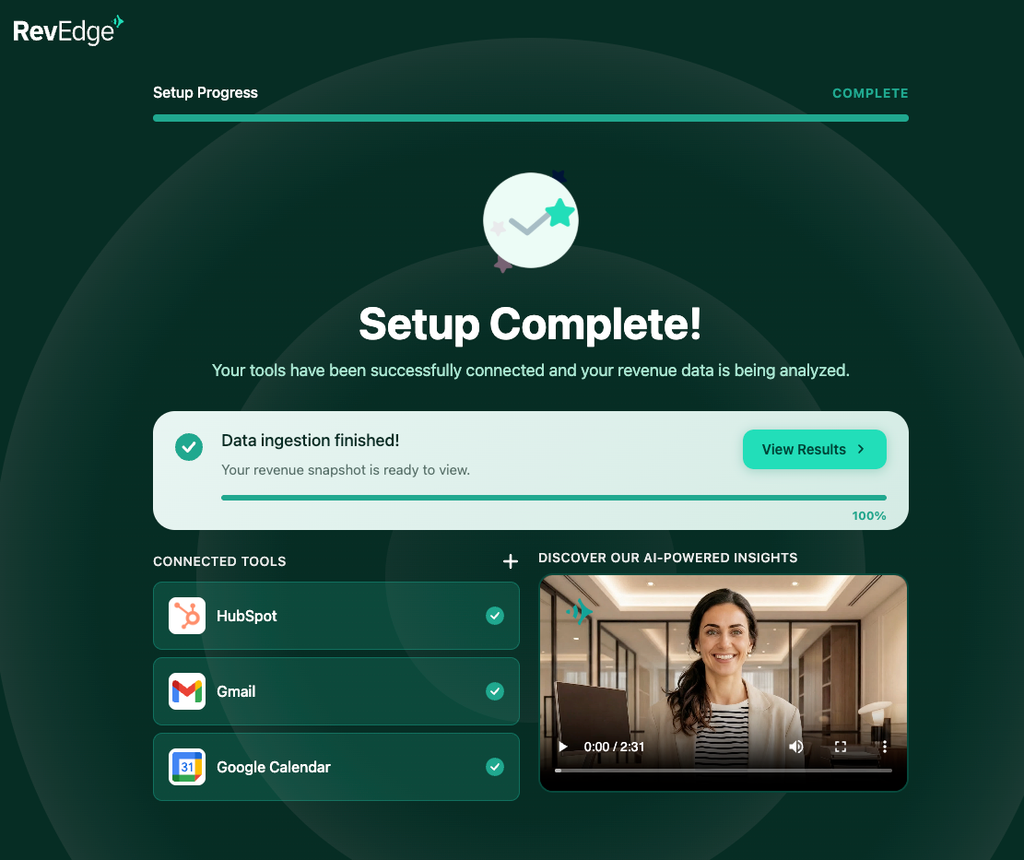
- Click Finish to complete setup.
Once these steps are complete, your setup is finished and RevEdge will begin generating insights from your connected data.
Use the App
RevEdge automatically keeps your HubSpot contacts, companies, and deals in sync with RevEdge’s revenue intelligence engine, according to the settings configured during setup. No manual action is required for data to continuously sync.
- RevEdge continuously analyzes connected HubSpot deal, pipeline and account activity to flag patterns like stalled deals, weakening pipeline coverage, or at-risk renewals — before they affect revenue.
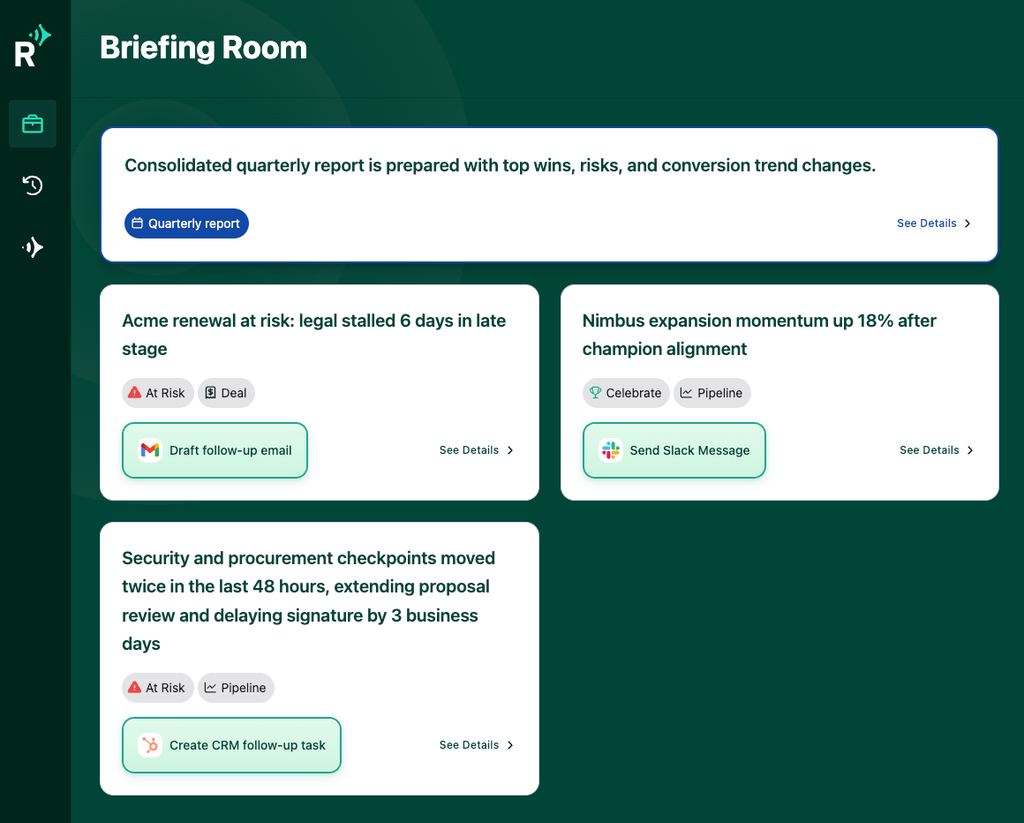
- Every insight comes with an executive-level brief, 3-5 prioritized recommendations, and CRO-trained agentic actions users can execute directly from the app. No action is taken without a human in the loop executing the action.
- Notifications and insights generated by RevEdge reference the underlying HubSpot records, so users can jump directly to the related contact, company, or deal in HubSpot to dig deeper.
- Users can review and act on RevEdge notifications from the RevEdge dashboard at any time.
Disconnect the App
Note: If you disconnect your HubSpot account from RevEdge, HubSpot contact, company, and deal data will no longer sync with RevEdge. Existing data already pulled into RevEdge will remain, but will no longer update. Data in HubSpot itself is not affected.
- Log in to RevEdge.
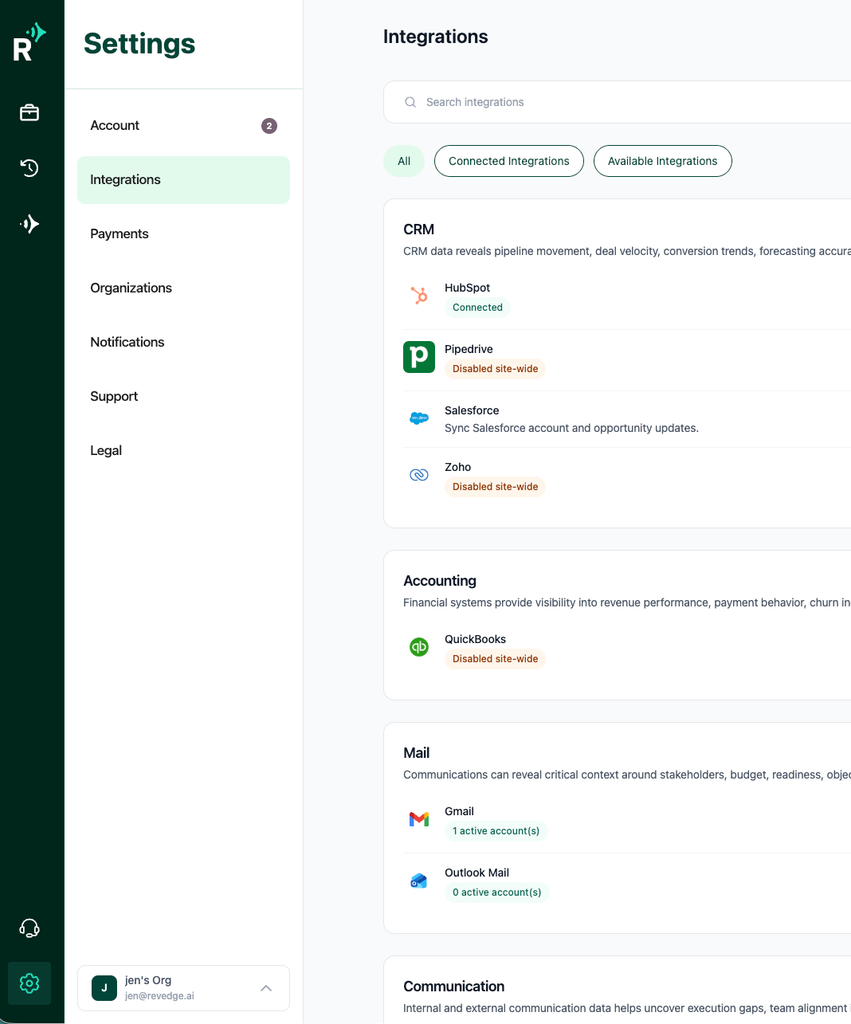
- Navigate to Settings by clicking the Gear icon on the bottom left > Integrations.
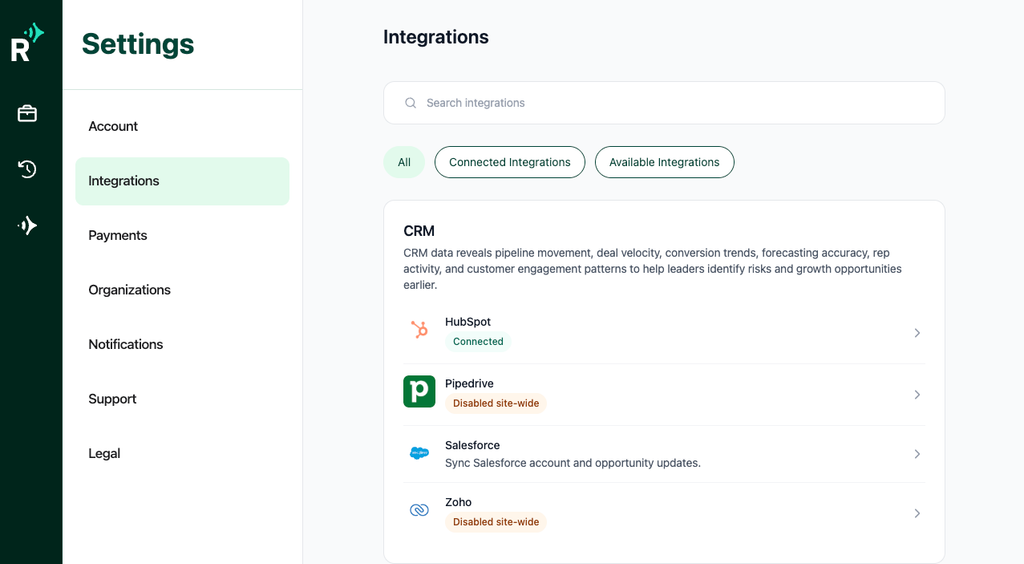
- Locate the HubSpot row.
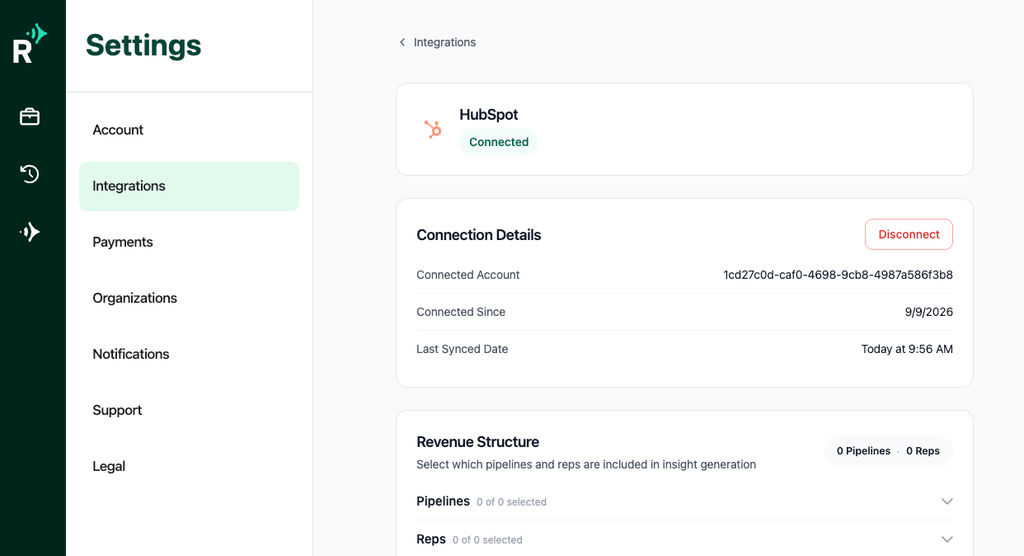
- Click Disconnect.
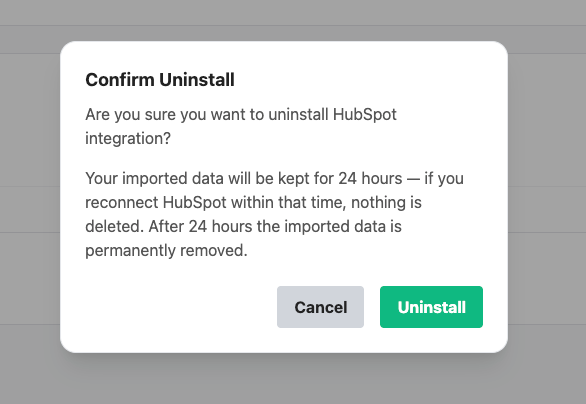
- Click Yes, I am sure to confirm.
Uninstall the App
To fully remove RevEdge’s access to your HubSpot account, uninstall the app from within HubSpot in addition to disconnecting it in RevEdge:
Follow the instructions in this HubSpot Knowledge Base article to uninstall an app: https://knowledge.hubspot.com/integrations/connect-apps-to-hubspot#uninstall-an-app
Note: Uninstalling RevEdge from HubSpot revokes RevEdge’s access to your HubSpot data going forward. Data RevEdge has already synced will remain in RevEdge unless you separately request deletion from RevEdge support.
Need Help?
If you run into any issues during setup, RevEdge support is available to help:
Contact support: https://revedge.ai/support/